
Swapping out an HP Envy keyboard doesn’t have to be intimidating. The keyboard is a vital part of your laptop that enables interaction and productivity. Over time, it can suffer from wear or accidental damage, causing keys to become unresponsive. In this detailed guide, we’ll explore understanding common HP Envy keyboard issues, preparing for a replacement, and executing the task efficiently. Our aim is to help you maintain your laptop in top condition while saving on repair costs.
Understanding HP Envy Keyboard Issues
HP Envy keyboards might malfunction due to hardware or software glitches. Identifying the symptoms that indicate a replacement need is essential. Unresponsive, jammed, or missing keys, along with damage from spills, often mean a new keyboard is necessary.
Before deciding on a replacement, rule out any software mishaps by updating drivers or adjusting settings. Persistent issues likely signal it’s time to tackle hardware replacement.
Preparing for the Replacement
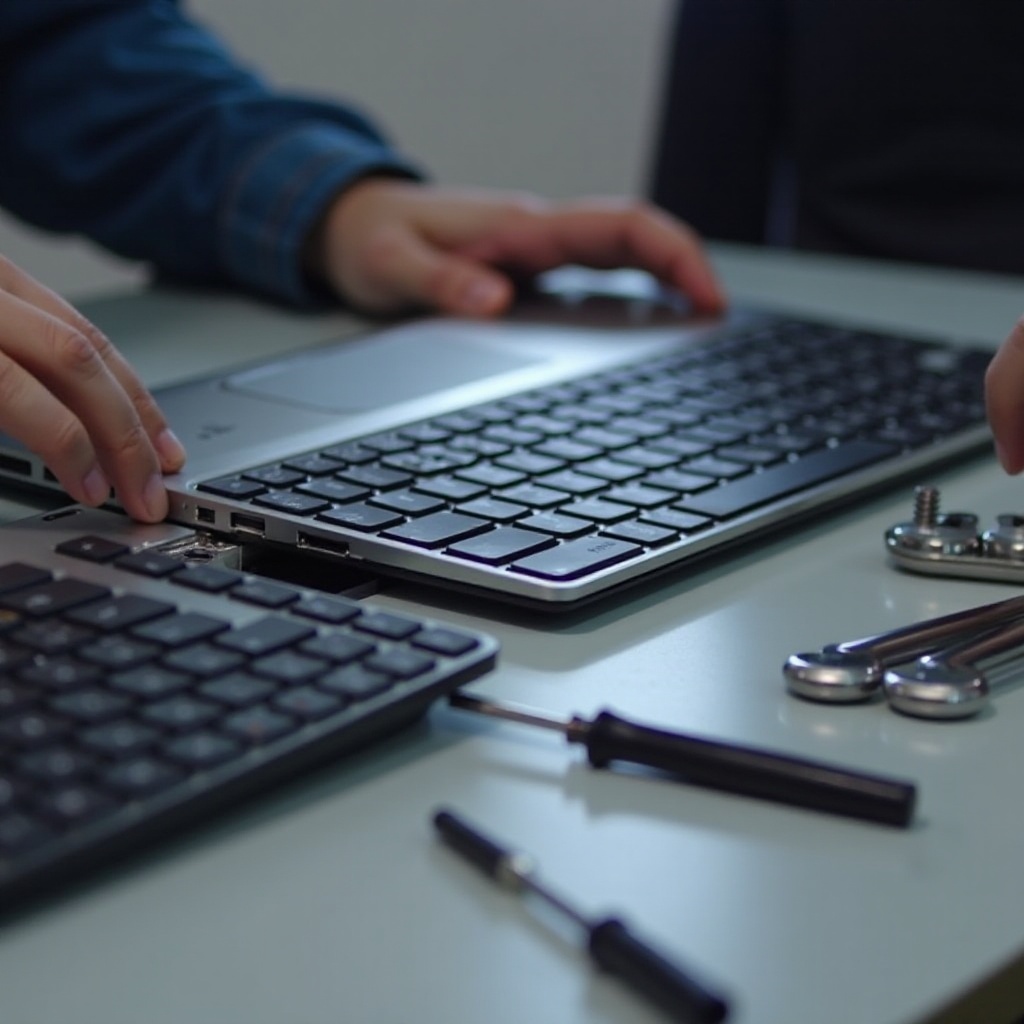
Proper preparation guarantees a smoother keyboard replacement. Gather these essential tools: a precision screwdriver set, a spudger or plastic opening tool, and an anti-static wrist strap. Ensure your new keyboard is suitable for your HP Envy model.
- Data Backup: Protect your files to prevent data loss.
- Workstation Setup: Select a bright, static-free workspace with enough room.
- Safety Measures: Disconnect your laptop from power and wear a wrist strap to minimize static risks.
With these preparations in place, you’re ready to focus on the task at hand, setting the stage for a straightforward process.
Step-by-Step Guide to Replacing Your HP Envy Keyboard
Accurate replacement involves patience and care. Adhere to this process:
- Power Off and Unplug: Shut down the laptop and remove any connected peripherals to prioritize safety.
- Extract the Battery: Move the release latch and remove the battery.
- Keyboard Access: Unscrew the back panel and gently detach it using a spudger.
- Detach the Keyboard Ribbon: Carefully unlock and remove the keyboard ribbon cable.
- Remove the Old Keyboard: Unscrew and lift the keyboard, watching for clips.
- Install the New Keyboard: Align and secure the new keyboard, reconnect the ribbon cable.
- Reassemble: Fasten screws, replace the back panel, and reinsert the battery.
With installation complete, it’s crucial to verify functionality and address any potential issues.
Post-Replacement Troubleshooting
Verifying your newly installed keyboard’s functionality is vital for seamless operation.
- Conduct a Key Test: Boot up the laptop and ensure each key registers correctly.
- Inspect for Errors: Check for any error notifications linked to the keyboard.
If issues persist, reverify your connections. Ensuring the ribbon is secure and no screws are loose can solve many problems. Prompt resolution ensures long-lasting keyboard performance.

Choosing the Right Replacement Keyboard
Opting for the right keyboard ensures easier installation and reliable functioning. Ensure compatibility with your HP Envy model to avoid fitting issues.
Consider features you prioritize, like backlighting or ergonomic design. Purchasing from trusted retailers guarantees quality and compatibility.

Conclusion
Replacing your HP Envy keyboard can be an approachable DIY project with the right knowledge. This guide empowers you to resolve hardware issues effectively, ensuring your laptop remains in excellent condition. By following a methodical approach from preparation to troubleshooting, you can enhance your device’s performance and extend its lifespan.
Frequently Asked Questions
How often should I replace my HP Envy keyboard?
Generally, replace the keyboard only when it wears out or is damaged. Proper maintenance can extend its lifespan significantly.
Can I use a different model’s keyboard for my HP Envy?
No, using a keyboard designed for a different model may cause compatibility issues. Always use one specific to your HP Envy model.
What should I do if my new keyboard still doesn’t work?
Ensure all connections are secure and the driver is updated. If issues persist, the keyboard might be defective or additional expert support may be needed.