
Introduction
Keeping your Mac keyboard clean is important for its performance and longevity. Accumulated dust and debris can cause keys to stick or malfunction. Knowing how to safely remove Mac keyboard keys is essential for effective maintenance. This guide provides step-by-step instructions for removing, cleaning, and reattaching keys, along with helpful tips to prevent future issues.

Tools and Materials Required for Removing Mac Keyboard Keys
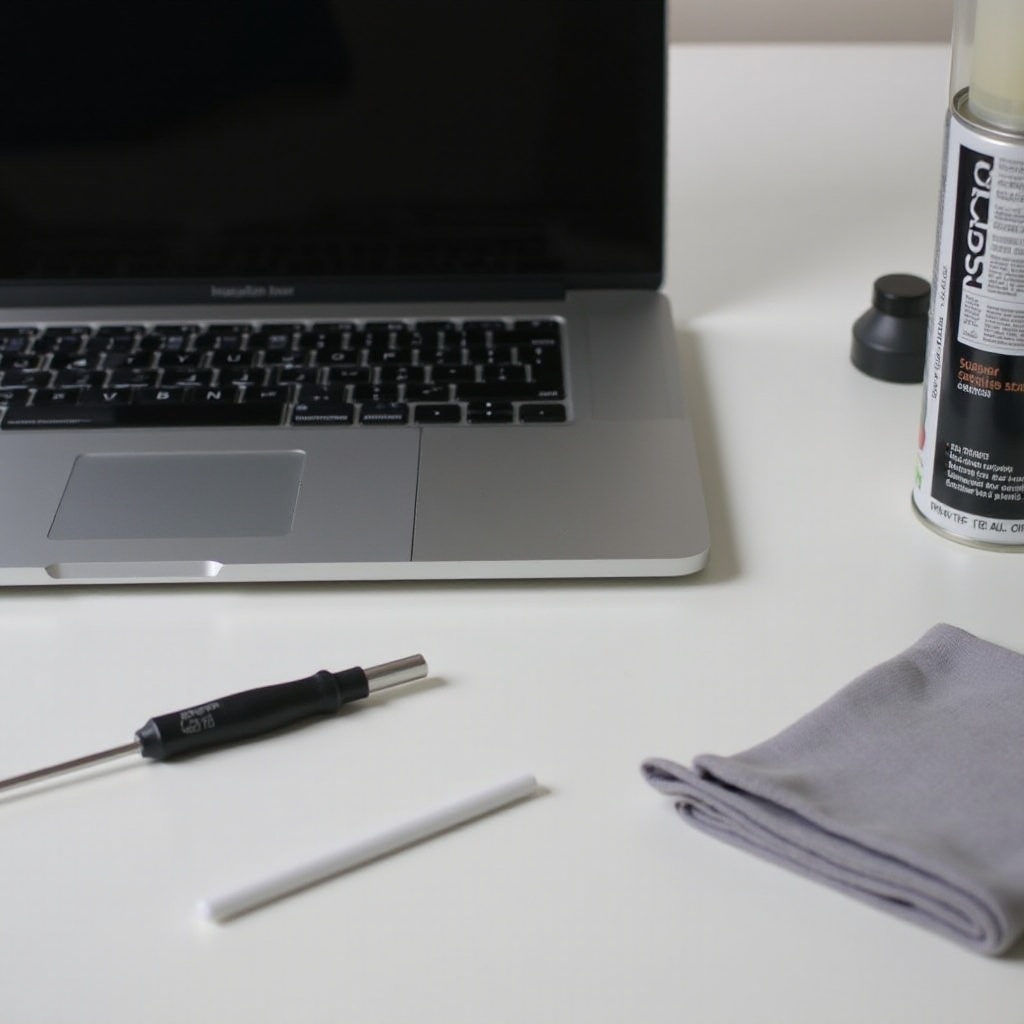
Before you start, gather all the necessary tools and materials to make the process smooth and reduce the risk of damage:
- Keycap puller: This tool helps remove keys without damaging them.
- Soft cloth: Use it to wipe the keyboard and keys.
- Isopropyl alcohol or a mild cleaning solution: Great for disinfecting and removing grime.
- Cotton swabs: Perfect for cleaning hard-to-reach areas.
- Small container: Ideal for keeping keys safe during cleaning.
Having these items ready sets the foundation for an efficient and safe removal process. Once your tools are in place, it’s time to set up your workspace and prepare your Mac.
Preparing Your Mac and Workspace
A well-prepared workspace and Mac are crucial for a successful key removal process. Follow these steps:
- Shut down your Mac to prevent accidental inputs and possible electrical issues.
- Unplug your Mac and detach any peripherals connected to it.
- Choose a clean, flat surface in a well-lit area for your work station.
- Lay a soft cloth or towel on the surface to avoid scratches.
With your Mac and workspace ready, you’re set to proceed with the key removal process. The next section will guide you through safely removing your Mac keyboard keys.
Step-by-Step Guide to Removing Mac Keyboard Keys
Removing keys requires care to avoid damaging them or the keyboard. Follow these steps:
- Position the keycap puller over the key you wish to remove and ensure even pressure.
- Gently pull upwards with steady pressure. The key should pop off easily.
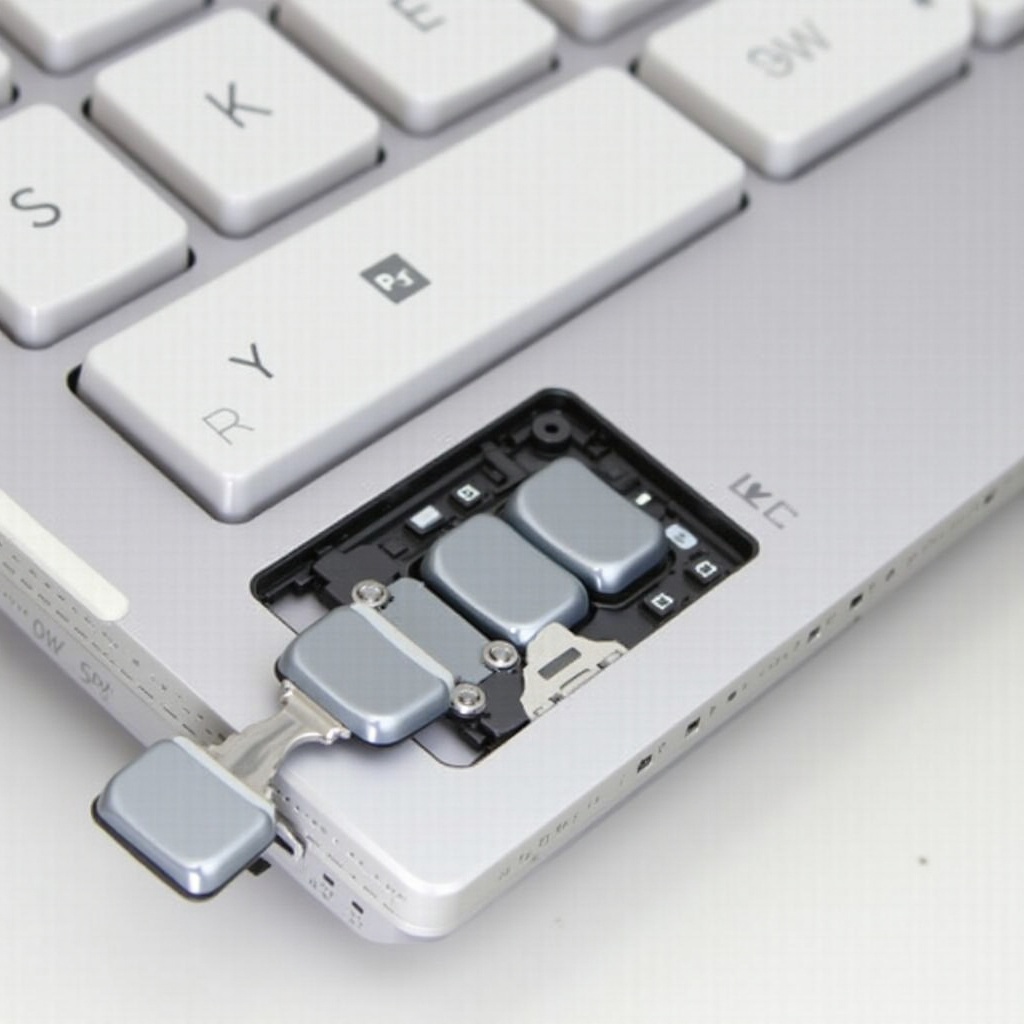
- Observe the key’s mechanism beneath it for reattachment guidance.
Be cautious with larger keys like the spacebar, as they may have additional support mechanisms. With the keys removed, proceed to clean both the keyboard surface and the keys.
Cleaning Keyboard Keys and the Keyboard Surface
Cleaning enhances your keyboard’s appearance and performance. Follow these steps:
- For the keyboard surface: Wipe with a cloth dampened with isopropyl alcohol, focusing on key mounts and edges.
- For individual keys: Use a cotton swab dipped in the cleaning solution for thorough cleaning.
- Ensure all parts are completely dry before moving to reattachment.
A well-cleaned keyboard is ready for reassembly, ensuring optimal functionality and cleanliness.
Reattaching and Securing Keys on a Mac Keyboard
Once everything is clean and dry, reattach the keys carefully:
- Align the key’s center over the key mount, matching the observed mechanism.
- Press down gently until you hear a click, confirming the key is secure.
- Test the key’s functionality by pressing it multiple times.
Ensure larger keys are properly attached with supporting clips for stability. This final step restores full functionality to your cleaned keyboard.
Preventive Maintenance Tips for Mac Keyboards
Regular maintenance prolongs your keyboard’s life and ensures smooth operation. Consider these tips:
- Use a keyboard cover to block debris.
- Wipe the keyboard regularly with a microfiber cloth.
- Schedule comprehensive cleanings, including key removal, every few months.
By following these preventive measures, you maintain optimal keyboard performance and reduce the likelihood of frequent cleanings.
Conclusion
Removing and cleaning Mac keyboard keys is manageable with the right approach. By following these steps, you can effectively maintain your keyboard and keep it in excellent condition. Regular care and attention prevent most common issues, ensuring your Macbook remains in peak performance for years.
Frequently Asked Questions
Can I remove and clean keys from any Mac keyboard model?
Yes, most Mac keyboards allow for key removal, but the procedure may differ slightly. Check your model’s specific guide if available.
Should I use water or any specific cleaner for the keys?
It’s recommended to use isopropyl alcohol or a mild cleaning solution. Avoid water, as it might damage electronic components.
What should I do if a key doesn’t work after reattachment?
Check if the key is aligned and securely attached. If issues persist, the underlying mechanism might require professional repair.