
Introduction
Connecting a keyboard to your Steam Deck elevates your gaming and productivity experience. Whether engaging in fast-paced games or tackling complex tasks, having a keyboard expands your functionality. This detailed guide provides you with step-by-step instructions on how to connect and optimize your keyboard setup with your Steam Deck.
Understanding Steam Deck’s Connectivity Options
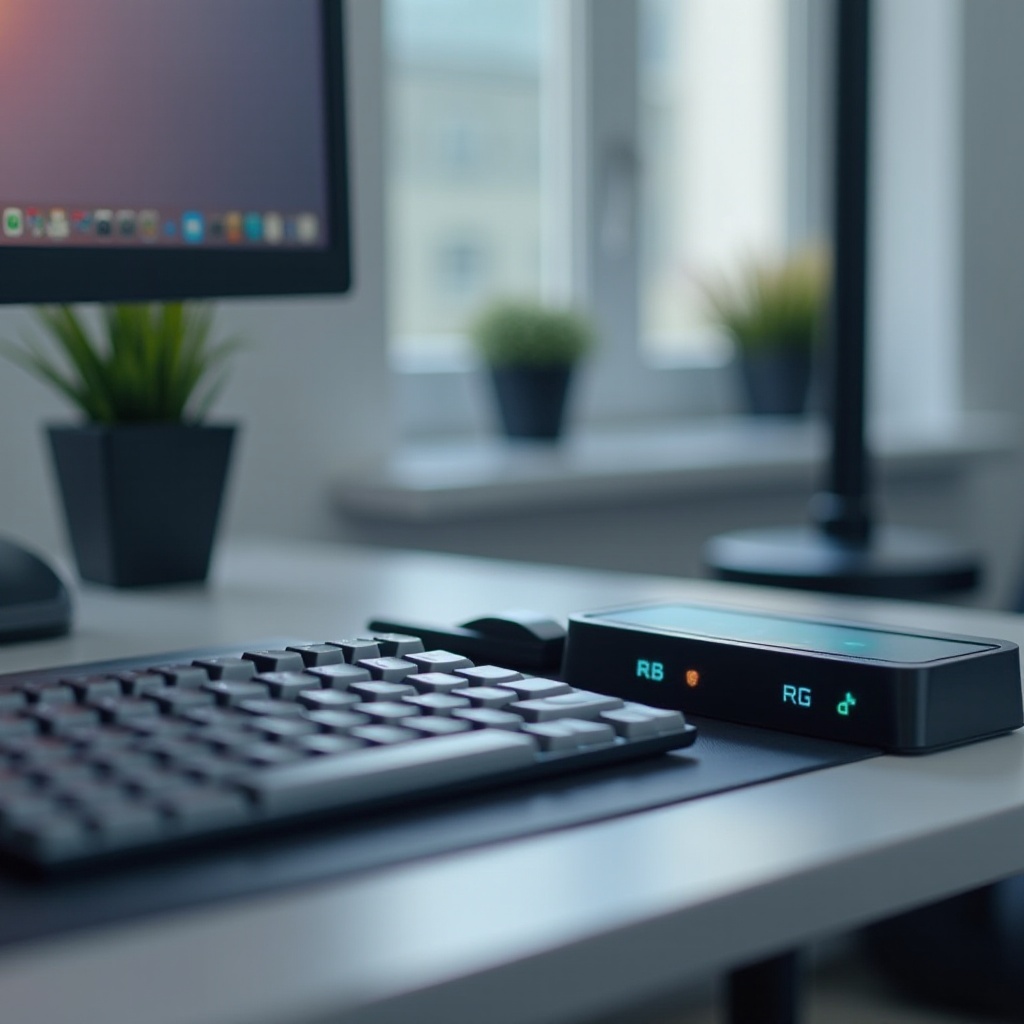
Before starting the connection process, it’s essential to understand the diverse ways you can connect your keyboard to the Steam Deck. You can choose from wired, wireless, and Bluetooth options, depending on your preferences and needs.
- Wired Connection: Utilizes USB-C to USB-A adapter for direct keyboard connection.
- Wireless Connection: Uses a USB dongle for wireless keyboard connectivity.
- Bluetooth Connection: Employs Bluetooth for a direct link between your keyboard and Steam Deck.
Selecting the appropriate connection type will guide you in effectively setting up your keyboard.
Connecting a Wired Keyboard to the Steam Deck
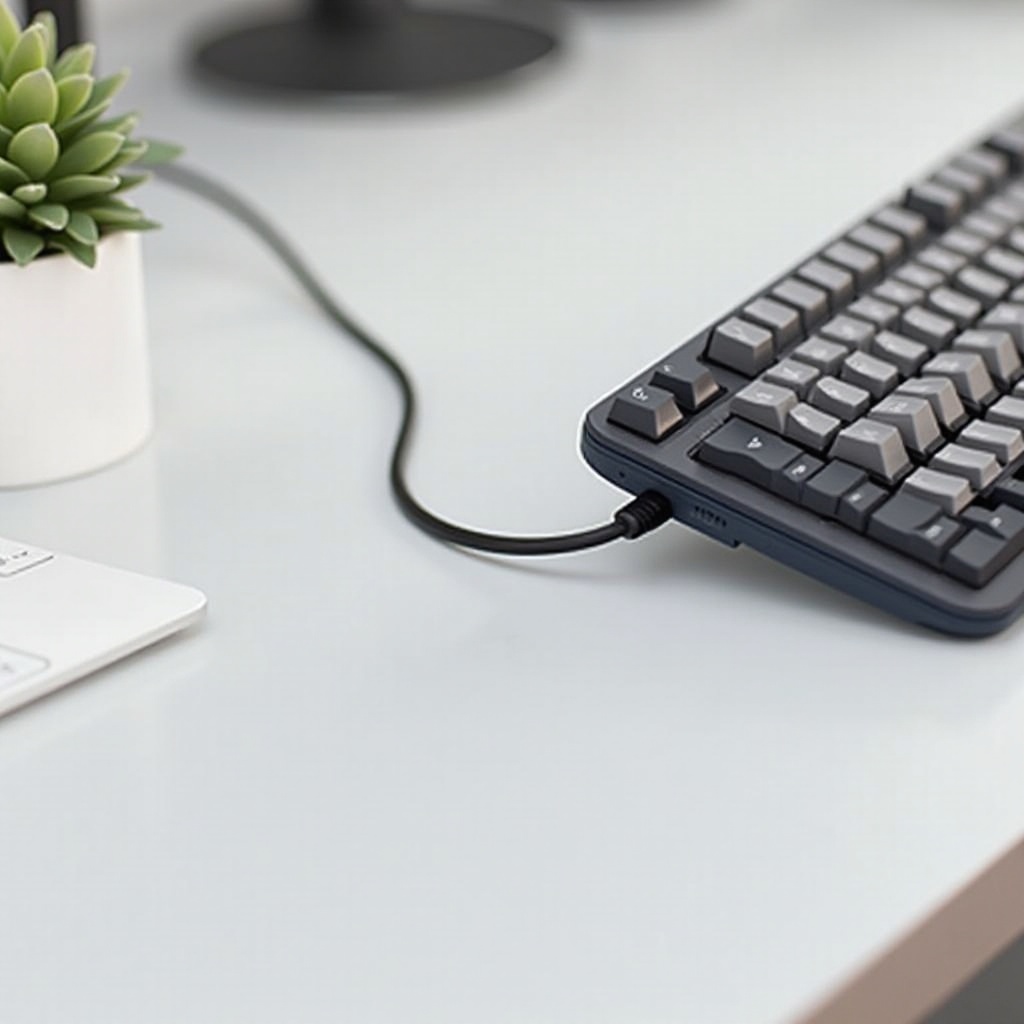
For those who prefer the consistency of a wired connection, follow these steps:
- Gather Necessary Equipment: Have a USB-C to USB-A adapter ready since the Steam Deck primarily features USB-C ports.
- Establish the Connection: Plug the keyboard’s USB interface into the adapter, then connect to the Steam Deck.
- Verify Functionality: Check for any system notifications confirming recognition and test keys to ensure proper operation.
Following these steps will enable you to enjoy a stable and interference-free connection.
Setting Up a Wireless or Bluetooth Keyboard
Should you opt for a wireless setup, you can choose between leveraging a USB dongle or Bluetooth capabilities.
Using a Wireless USB Dongle:
- Insert the Dongle: Place the keyboard’s dongle into a USB-C to USB-A adapter.
- Connector Setup: Attach the setup to your Steam Deck.
- Test Responsiveness: Confirm that the keyboard is active and verify the key response.
Pairing a Bluetooth Keyboard:
- Enable Bluetooth: Go to the Steam Deck settings to activate Bluetooth.
- Initiate Pairing:
- Set your Bluetooth keyboard into pairing mode (see the manual if needed).
- Select your keyboard from available devices on the Steam Deck.
- Confirm Pairing: Test the functionality to ensure all keys are working correctly.
These methods provide the flexibility of a clean, wire-free gaming environment.
Troubleshooting Keyboard Connection Issues
Encountering connection issues can be frustrating, but here’s how to resolve common problems:
- Power Check: Make sure the keyboard is adequately charged or replace batteries.
- Re-pair Devices: With Bluetooth, try forgetting and re-pairing the keyboard.
- Firmware Updates: Verify both your Steam Deck and keyboard have the latest updates.
- Signal Strength: For wireless options, minimize distance and obstacles to enhance connectivity.
Addressing these aspects helps mitigate connectivity issues, ensuring a smoother user experience.
Optimizing Your Keyboard Setup on the Steam Deck
Once connected, optimizing the setup enhances your overall Steam Deck experience:
- Custom Settings: Access the Steam Deck’s input options to tailor your key bindings.
- Game Profiles: Modify key assignments for specific games, mapping crucial functions to convenient keys.
- Software Tools: Employ tools like Steam Input for personalized controls and settings adjustments.
Optimizations ensure that the keyboard integration into your Steam Deck usage is seamless and efficient.
Conclusion
By following this comprehensive guide, you’ve successfully connected and tailored your keyboard for the Steam Deck. Whether using wired, wireless, or Bluetooth, each offers unique advantages that maximize the Deck’s potential. Enjoy a superior gaming experience with your fully optimized setup.
Frequently Asked Questions
Can I use any keyboard with the Steam Deck?
Yes, most USB and Bluetooth keyboards are compatible with the Steam Deck, provided they adhere to standard connectivity protocols.
How do I know if my keyboard is connected properly?
Successful connections typically result in immediate key responsiveness and, for Bluetooth, a pairing notification.
What should I do if my Bluetooth keyboard doesn’t connect?
First, ensure Bluetooth is enabled on both devices. If problems persist, attempt re-pairing or check for firmware updates.