
Introduction
Experiencing a faulty keyboard can hinder productivity and elevate frustration levels. Whether it involves physical challenges such as sticking keys or software-related issues like incorrect settings, tackling these problems is essential. This guide provides effective strategies to diagnose and resolve common keyboard malfunctions, ensuring smooth operation. Let’s delve into the intricate functioning of your keyboard and the steps to maintain its efficiency.

Understanding Your Keyboard
It’s important to familiarize yourself with the various components and types of keyboards before delving into problem-solving. Such knowledge aids in accurate diagnosis and effective repair.
Types of Keyboards
Keyboards are available in various formats, including mechanical, membrane, and wireless. Mechanical keyboards feature individual switches for each key, delivering tactile feedback and robust durability. Membrane keyboards rely on pressure pads, commonly found in laptops. Wireless keyboards, although mobile, may introduce connectivity complications.
Basic Keyboard Components
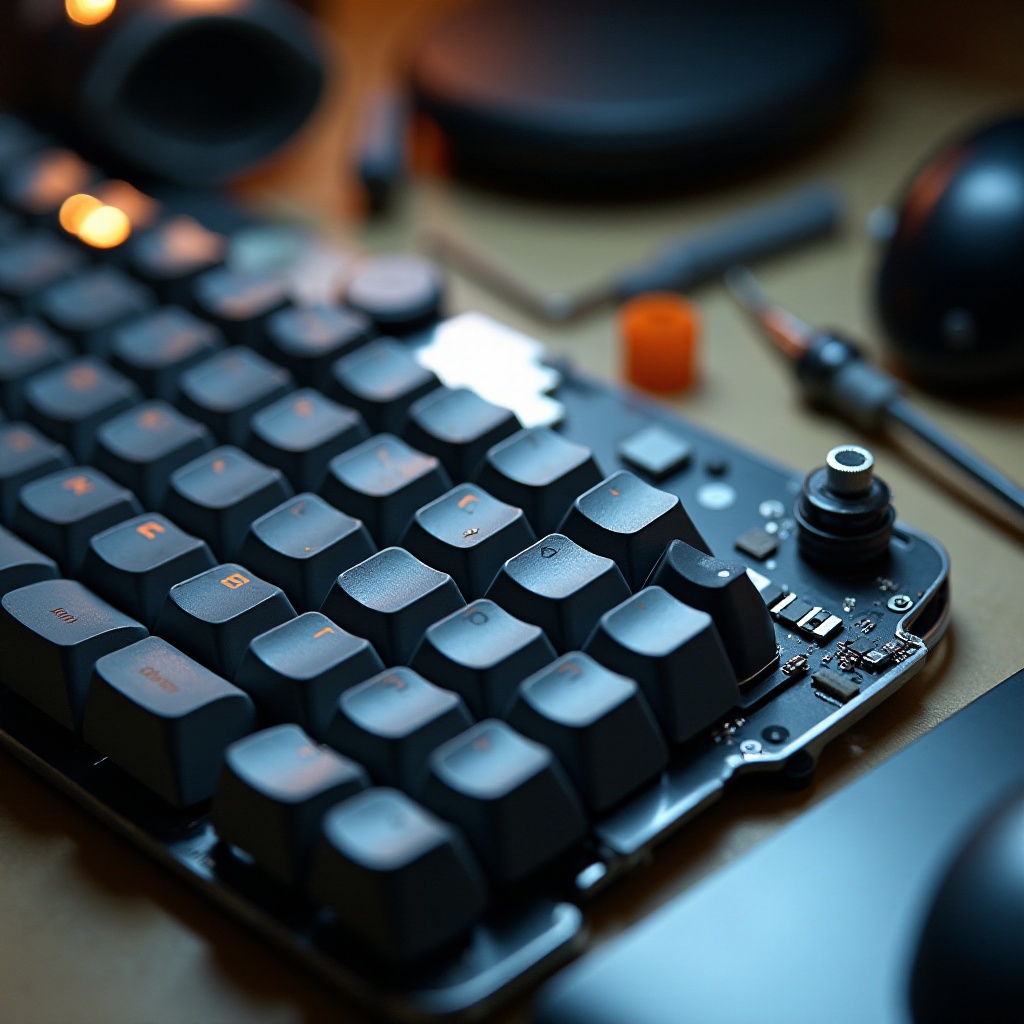
Knowing the components of a keyboard helps identify potential issues. Components include keys, keycaps, a printed circuit board (PCB), and either mechanical or rubber dome switches. Understanding these parts is crucial in pinpointing where problems might emerge.
Diagnosing the Problem
To effectively repair a keyboard, one must first determine whether the issue is physical or software-related.
Physical vs. Software Issues
Physical issues typically involve unresponsive or sticky keys due to debris or wear. Software issues may present as keys producing incorrect characters or delayed responses caused by outdated drivers.
Tools and Preparations Needed
Before beginning repairs, gather essential tools such as screwdrivers, cotton swabs, compressed air, and cleaning solutions. Establishing a clean workspace is crucial to prevent losing small components during repair.
Once you have identified the type of issue at hand, proceed with targeted solutions involving either cleaning or replacement.
Fixing Common Physical Issues
Effective physical repair often involves cleaning or replacing damaged parts to restore functionality.
Cleaning Your Keyboard
- Turn off your computer and disconnect the keyboard.
- Carefully remove the keycaps using a keycap puller.
- Use compressed air to clear debris from the keyboard’s surface.
- Clean keycaps and surfaces using a damp cloth or a cotton swab dipped in rubbing alcohol.
- Allow all parts to dry thoroughly before reassembling the keyboard.
Repairing or Replacing Keys
For broken or unresponsive keys, consider replacement. Order the necessary replacement keycaps or switch components. Install these by aligning and pressing new keycaps into place until they click securely.
Handling Sticky or Stuck Keys
Sticky keys are often caused by spills. Disassemble the affected section and clean thoroughly with a damp cloth, ensuring complete dryness before reassembly.
Transitioning from physical concerns, addressing software issues can also significantly improve keyboard performance.
Troubleshooting Software Problems
Software-related challenges require specific approaches to restore keyboard functions fully.
Updating or Reinstalling Drivers
- Access your PC’s Device Manager.
- Navigate to ‘Keyboards’ and select your keyboard device.
- Right-click and opt for ‘Update driver’ to automate updates.
- If issues persist, uninstall the driver and restart the computer for automatic reinstallation.
Adjusting Keyboard Settings
Review and correct keyboard settings to resolve software inconsistencies:
- Go to ‘Settings’.
- Select ‘Time & Language’, then ‘Language’.
- Verify the right keyboard layout under ‘Preferred languages’.
Advanced Solutions for Specific Problems
Some keyboard issues may be unique, necessitating specialized solutions.
Fixing Wireless Connectivity Issues
When facing wireless connectivity problems, follow these steps:
- Inspect and replace batteries if needed.
- Confirm that the receiver is securely connected to the device.
- Restart the device and try reconnection.
Updating BIOS or Firmware
For certain models, updating the BIOS or firmware can resolve persistent issues. Consult the manufacturer’s website for the latest updates and detailed installation instructions.
By addressing both physical and software-related concerns, keyboard reliability significantly improves.
Preventive Maintenance Tips
Consistent upkeep can substantially extend a keyboard’s operational life:
- Keep food and beverages away from your workspace.
- Regularly dust and occasionally conduct deep cleaning.
- Use a protective keyboard cover.

Conclusion
A functional keyboard is vital for efficient computing. By mastering the types of keyboards, diagnosing and resolving both hardware and software issues, and practicing preventive care, you can ensure your keyboard’s longevity and performance. Embrace these methods to boost productivity and prevent unnecessary disruptions.
Frequently Asked Questions
Why is my keyboard not typing the correct characters?
This issue could be due to incorrect keyboard layout settings or software glitches. Verify settings in your device’s language preferences and adjust accordingly.
How do I know if my keyboard needs to be replaced?
If malfunctions persist, such as unresponsive keys or severe physical damage, and multiple repair attempts have failed, it may be time for a replacement.
Can I fix my keyboard if liquid was spilled on it?
Immediately turn off and unplug the device. Disassemble and dry out the keyboard components thoroughly. If keys continue to malfunction, consider professional repair or replacement.